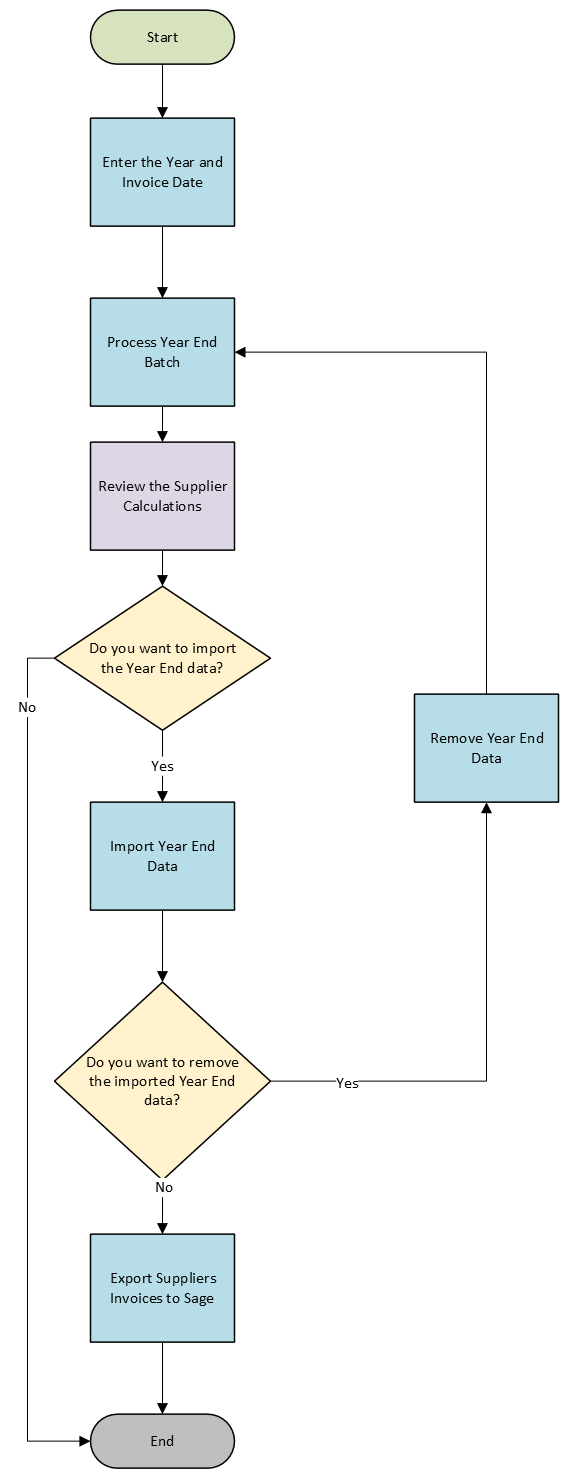
The Year End Batch entry screen is to enter the criteria for the processing and to process the year-end batch. Once the batch is initially processed, the calculation results can be validated. The results are stored in a staging area, that is not part of the live data in RHOP. After the calculations are validated, it is possible to import the results into the live data. You can also remove the imported data, if an error has been identified and the batch can then be reprocessed. After the batch has been imported, the supplier invoices can be exported to Sage.
Important: Only one batch per calendar year can be imported into RHOP's live data.
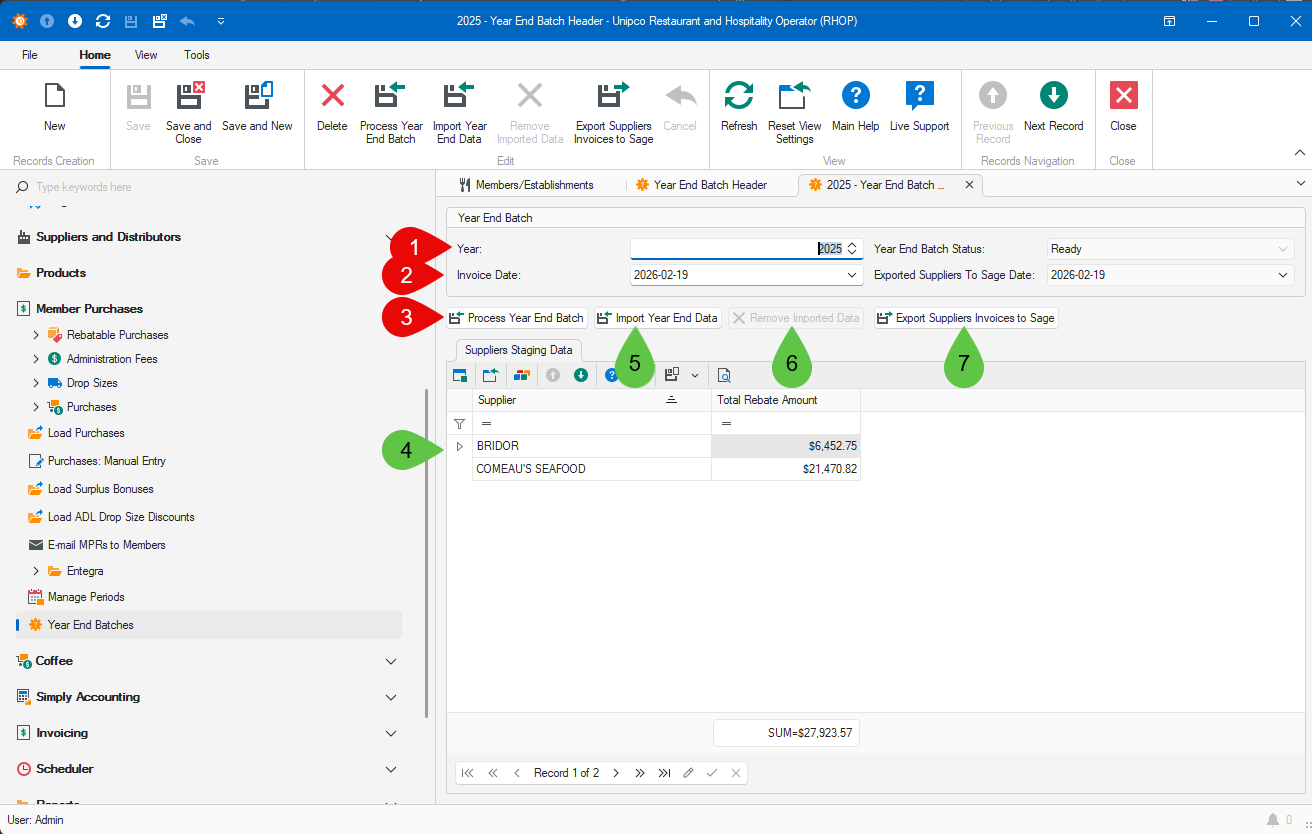
1.Enter the calendar Year for the batch.
2.Enter the Invoice Date that will appear on the suppliers invoices.
3.The Process Year End Batch button assembles and calculate the suppliers bonus rebates.
4.The list of Suppliers Staging Data tab list the suppliers with calculated bonus rebates. Double-clicking on a supplier will open the Year End Batch Supplier Entry Screen.
5.The Import Year End Data button imports the staging data into the RHOP's live data.
6.The Remove Imported Data button is to remove the imported data from RHOP's live data. You would perform this action if an error has been found and that the bonus rebates need to be recalculated.
7.The Export Suppliers Invoices to Sage button is to export the suppliers invoices to Sage.
Workflow for processing the Year-End Supplier Bonus Rebates in RHOP:
Related Documents
•How-To Process a Year-End Calculations Batch
•How To Export the Suppliers Invoices for the Year-End to UPP Sage