Master Tables dealing with the information related to Suppliers and Distributors
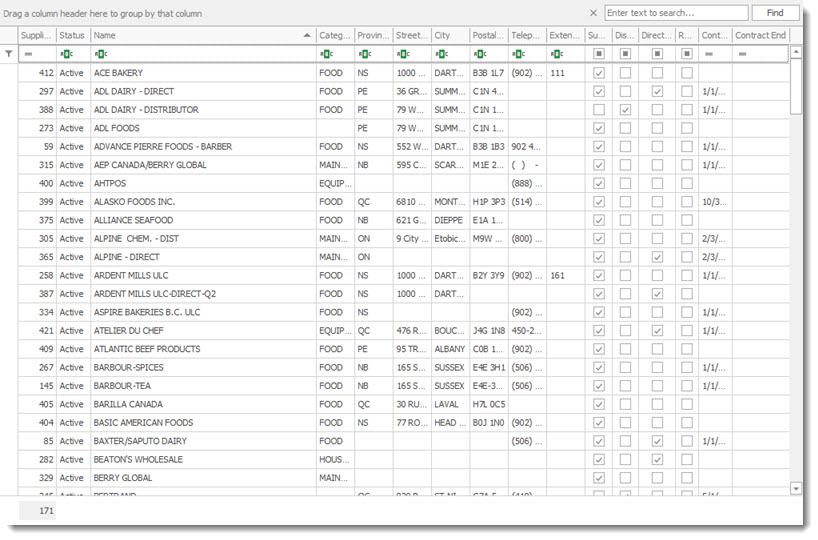
The Supplier Distributor List display all Suppliers and Distributors that exist in the RHOP system.
•To create a new Supplier and Distributor record select on the tool bar the New  button.
•To open a Supplier and Distributor record double click the Supplier and Distributor record and the Supplier and Distributor profile will be displayed. Once the Supplier and Distributor profile is open the user can edit the information it contains.
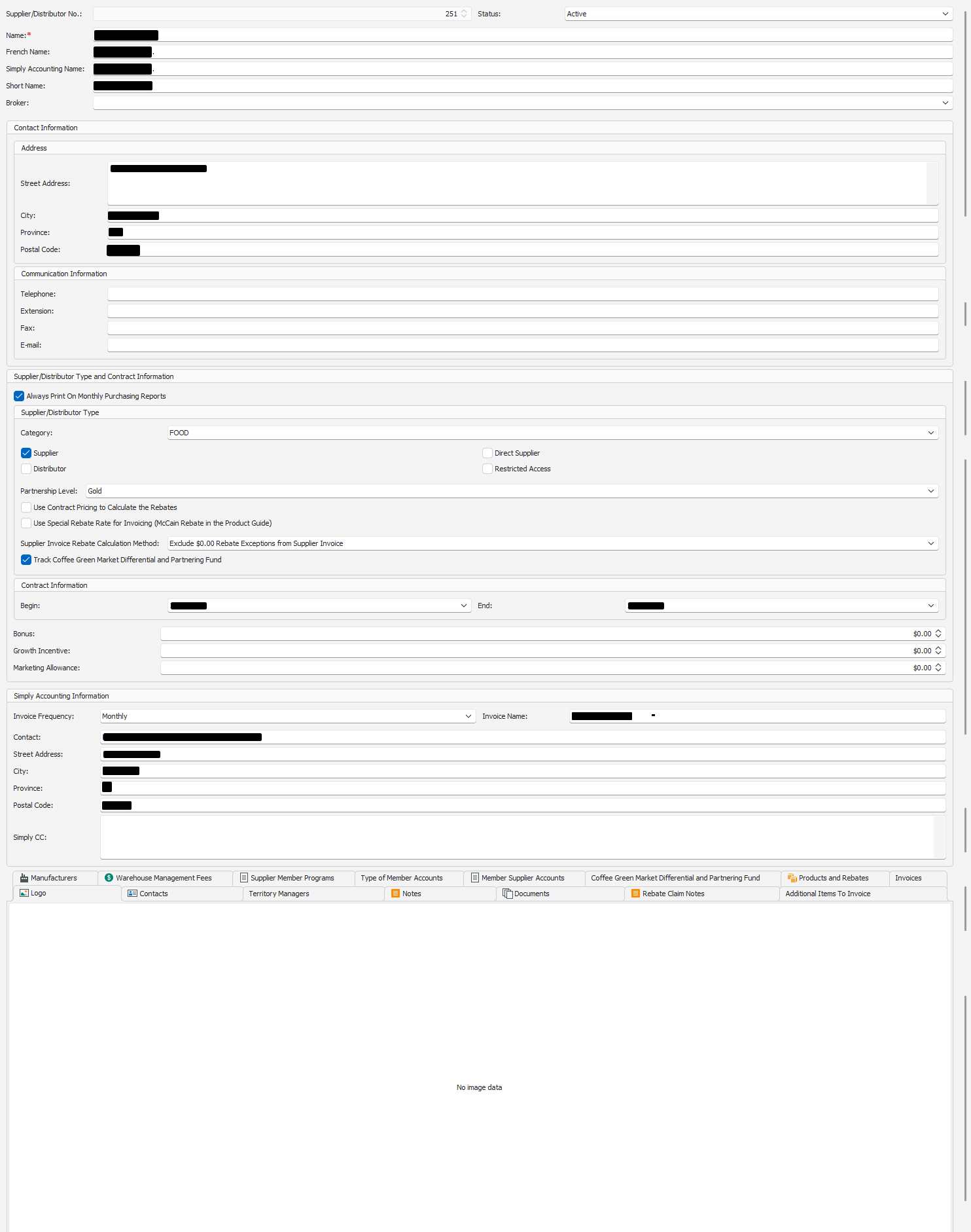
Supplier / Distributor No: Automatically assigned by the system and cannot be changed.
Status: Must be set to Active for the Supplier / Distributor to be used by the system. If set to Non-active the profile is ignored by the system.
Name: of the Supplier / Distributor used in reports.
French Name: of the Supplier / Distributor used in reports.
Simply Accounting Name: The name used to link Simply Accounting and this Supplier / Distributor activities for accounting purposes.
Short Name: a shorten name used buy the Supplier / Distributor.
Address: Address fields associated with the profile.
Communication Information: the various methods to communicate with the Supplier / Distributor.
Supplier/Distributor Type and Contract Information:
•Always Print on Monthly Purchasing reports: If checked, the supplier will always be printed on the Monthly Purchasing Report, even when no purchases are present.
•Supplier/Distributor Type:
oCategory: Vendor category classification
oSupplier: Represents that this supplier's products are purchased though a distributor.
oDistributor: Represents that the associated entry is a distributor.
oDirect Supplier: Represents that this supplier's products are purchased directly from the supplier by the member.
oRestricted Access:
oPartnership Level: If applicable, select the designated Unipco partnership level for the supplier, as defined by Supplier Rebate Partnership Levels
oUse Contract Pricing to Calculate the Rebates:
oUse Special Rebate Rate for Invoicing (McCain Rebate in the Product Guide):
oSupplier Invoice Rebate Calculation Method:
oTrack Coffee Green Market Differential and Partnering Fund:
•Contract Information:
oBegin: Starting Date for the contract
oEnd: Ending date for the contract
•Bonus:
•Growth Incentive:
•Marketing Allowance:
Simply Accounting Information: The Information used by Simply Accounting for this Supplier / Distributor profile.
Contract Information: Information of contracts Start and End Date for the Supplier / Distributor.
Bonus: associated with the Supplier / Distributor
Growth Incentive: associated with the Supplier / Distributor
Marketing Allowance: associated with the Supplier / Distributor
Available Tabs:
Logo tab : Logo for the Supplier/Distributor
Supplier/Distributor Contacts: List of contacts
Contains a list of Contacts for the Supplier / Distributor.
•To add a new contact use the New  record button in the tab section.
•To edit a record double click the record.
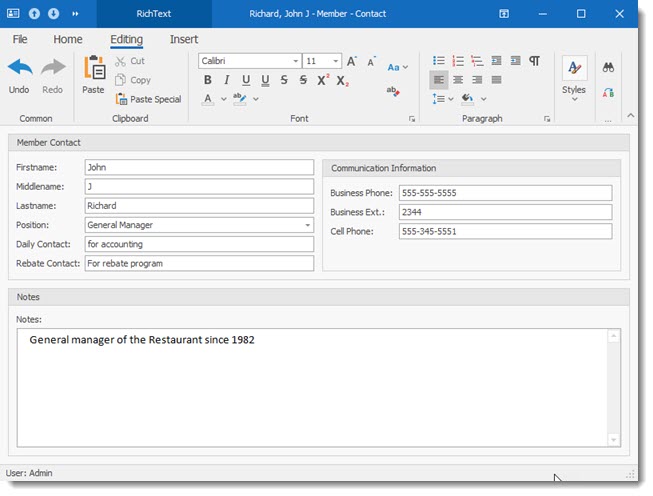
The Contact Profile dialogue will be displayed, Enter the Contact information.
Territory Managers
Supplier/Distributor Notes: Notes entered by users. Contains a list of Notes associated to theSupplier / Distributor. Each note contains a date of when it was created. To Add or edit a Supplier / Distributort note follow the same instructions as those for the Contact list
Documents: Documents attached to Supplier/Distributor. Contains a list of Documents associated to the Supplier / Distributor. Each Document contains a document description, document type and date of when it was created.
Supplier Distributor Rebate Claims Notes: Notes attached to profile. Contains a list of Notes associated to theSupplier / Distributor. Each note contains a date of when it was created.
To Add or edit a Supplier / Distributor note follow the same instructions as those for the Contact list
Additional Items To Invoice:
Manufacturers: list of manufacturers attached to Supplier/Distributor
Contains a list of manufactures associated to theSupplier / Distributor.
To Add or edit a Supplier / Distributort note follow the same instructions as those for the Contact list
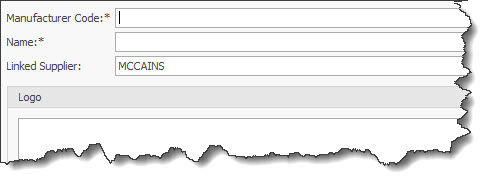
Manufacturer Code: to be used by the System
Name: of the Manufacturer
Linked Supplier: automatically linked by the system to the open record
Warehouse Management Fees: Fees associated with Supplier/Distributor. Contains a list of the Warehouse Management fees associated to the Supplier / Distributor.
To Add or edit a Supplier / Distributor note follow the same instructions as those for the Contact list.
The displayed screen is the Warehouse Management Fees screen. ( see Warehouse Management Fees under products )
Supplier Member Programs: List of programs that the Supplier/Distributor participates
Type of Member Accounts:
Member Supplier Accounts: Accounts associated with the Supplier/Distributor
Coffee Green Market Differential and partnering Fund:
Products and Rebates: Listing of products Lines and Rebates associated with the Supplier/Distributor. The displayed screen is the Product Guide screen. ( see Rebates under products
Invoices: Invoices that have been sent to the supplier
Rebate Exceptions
Users can enter rebate exception using the Supplier / Products and Rebates (1) / Member Rebate Exceptions (2) tab. A List of exceptions is displayed in the grid.
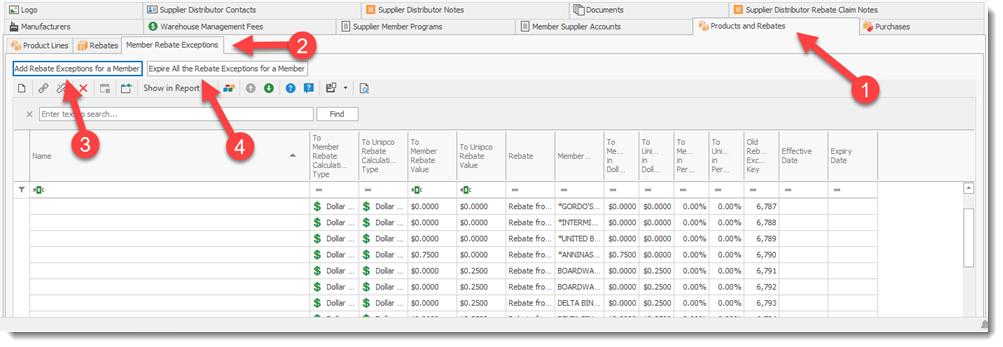
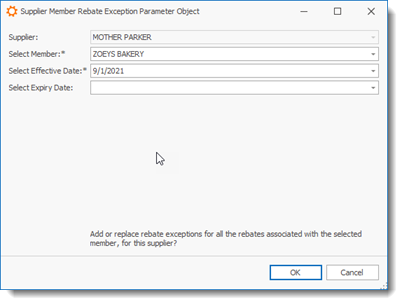
Select the Add Rebate Exception for a Member (3) button to add an exception. Complete the required field to record your exception.
Select the Expire all Rebate Exceptions for a Member (4) button to remove all Rebates exceptions linked to the selected supplier.